Summary Post 8
Time Log Teams – time spent on other Teams’ sites (must have 3 entries or more):
Date: Feb. 27, 2026 From: 09:05am To: 09:17am
Date: Feb. 27, 2026 From: 06:10pm To: 06:22pm
Date: Feb. 28, 2026 From: 10:15am To: 10:27am
Time Log Students – time spent on other students’ sites (must have 3 entries or more):
Date: Feb. 27, 2026 From: 10:10am To: 10:21am
Date: Feb. 27, 2026 From: 07:30pm To: 07:41pm
Date: Feb. 28, 2026 From: 11:05am To: 11:16am
Date: Feb. 28, 2026 From: 08:15pm To: 08:26pm
Essay I – Summary of Content Activities
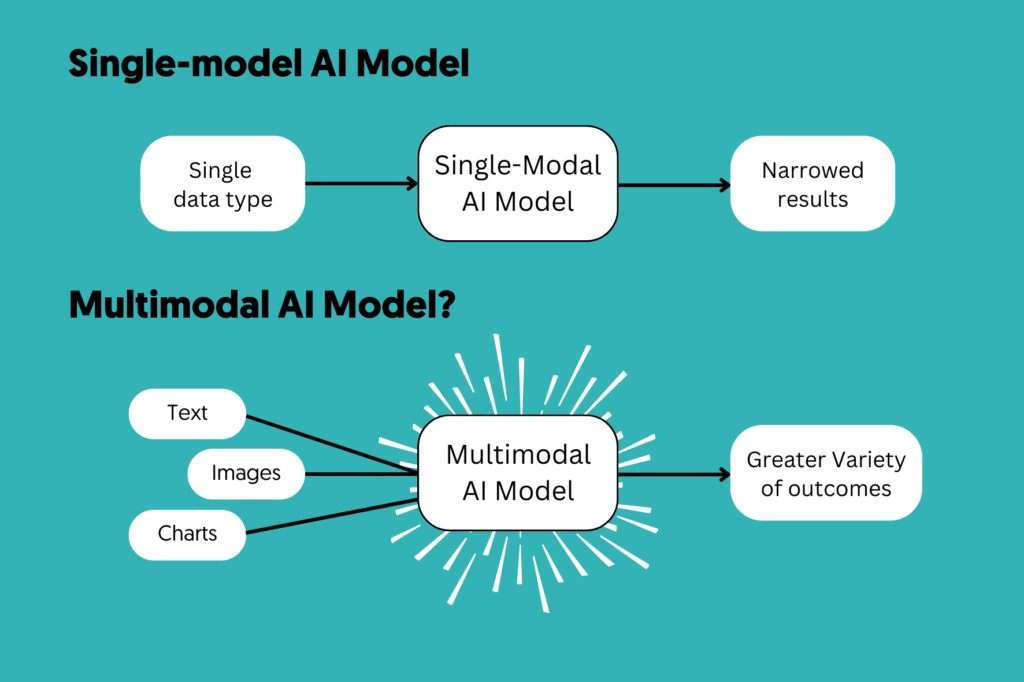
This week, I focused on creating two new in-depth blog posts centered on emerging AI trends that are shaping 2026. The first article explores Multimodal AI, breaking down how modern AI systems can simultaneously process text, images, audio, and video — and why this marks a fundamental shift in human-computer interaction. The second article covers AI Reasoning Models, explaining how systems like OpenAI’s o3 use chain-of-thought reasoning to “think before they respond,” and why this represents a paradigm leap beyond traditional language models. Both posts include proper image citations, are open for visitor comments, and have been categorized and tagged appropriately. I also updated the General Menu to reflect the new content under relevant categories, and added both posts to the HW8 section of the HWs Menu for grading purposes and also added Thankyou page and given it a separate parent block in the Menu. Additionally, I visited all Teams’ and students’ sites, leaving thoughtful comments on posts I found engaging, and moderated and approved incoming comments on my own site through the WordPress admin dashboard.
New Content Published This Week:
- Multimodal AI — When AI Finally Got Eyes, Ears, and a Voice
- AI Reasoning Models — The Revolution of “Think Before You Speak”
- Thank You Page
Essay II – Summary of “Thank You” Event Conversion
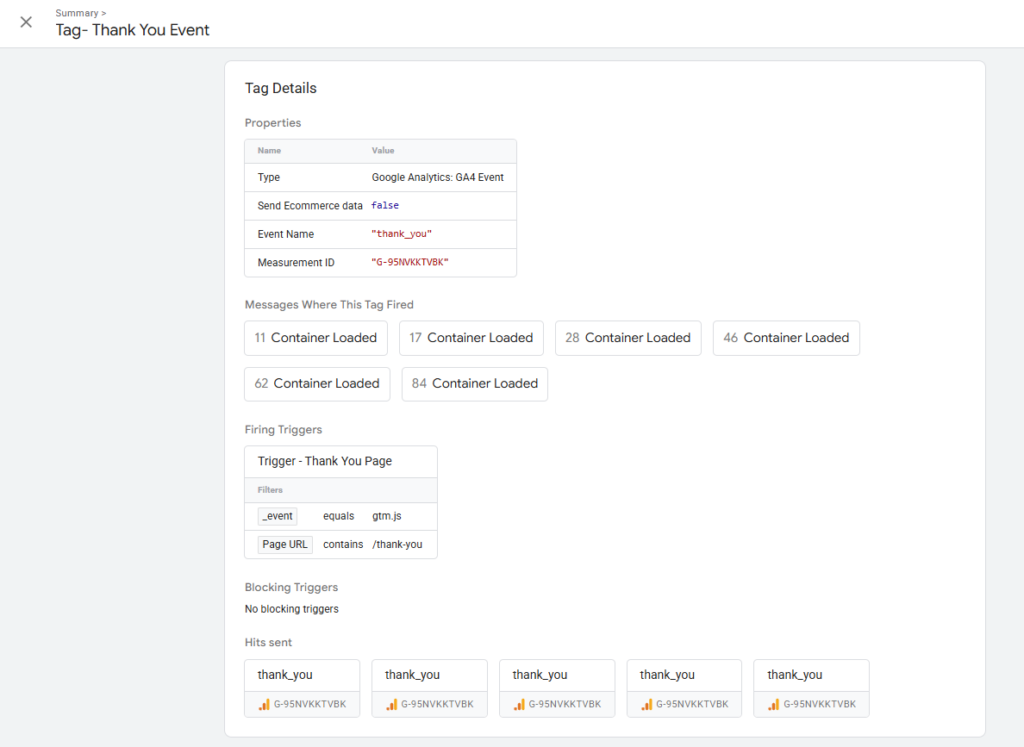
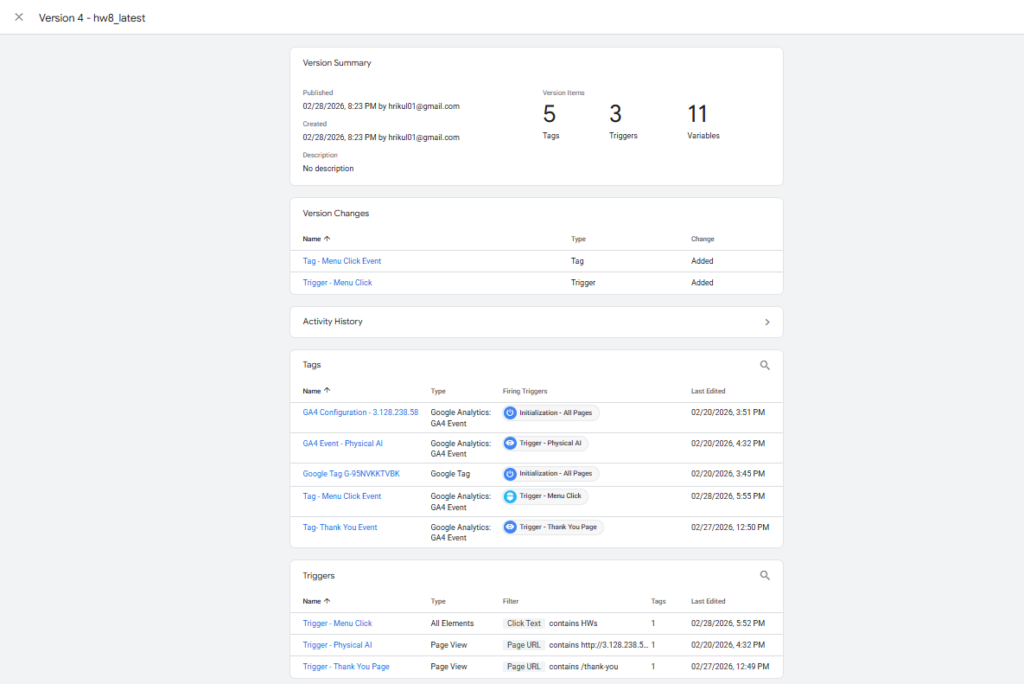
This week, I set up a “Thank You” page conversion event in Google Analytics 4 using Google Tag Manager. First, I created a dedicated Thank You page (not a post) in WordPress, which serves as the destination users land on after submitting a contact form. In GA4, I navigated to Admin → Data Display → Conversions and created a new conversion event named thank_you. To ensure the event fires correctly, I followed Conversion II → Method 1 and created a new event tag in Google Tag Manager — configuring it to trigger when a user lands on the Thank You page URL. The GTM tag was published and verified using GTM’s Preview/Tag Assistant mode, which confirmed the event fired successfully on page load. After the standard 12–24 hour delay, the thank_you conversion event appeared in GA4 under Admin → Events and was toggled as a conversion. Screenshots of the GA4 conversion setup and GTM tag configuration are included below.
Essay III – Summary of “Menu Click” Event Conversion
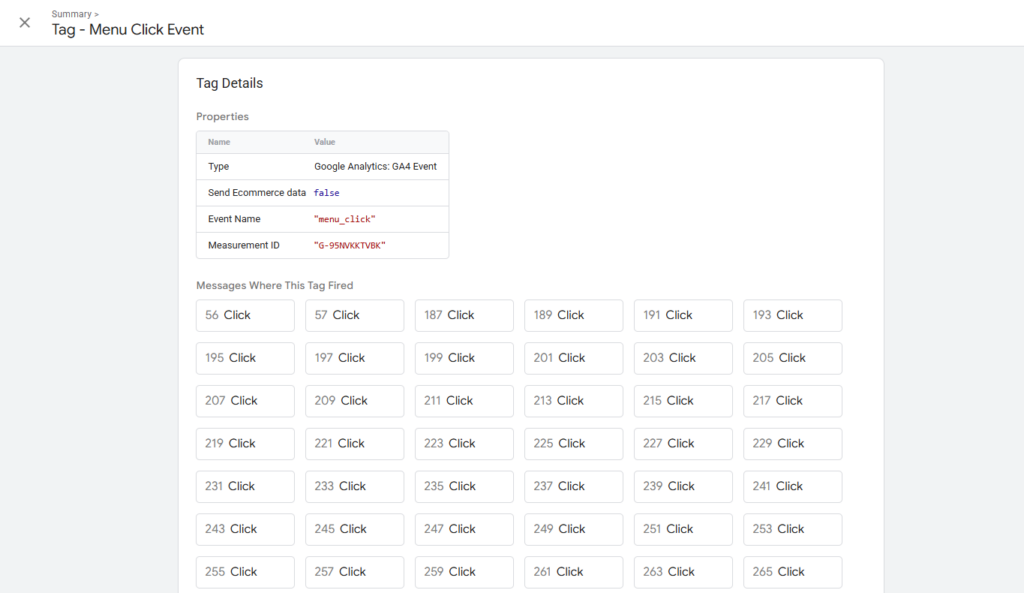
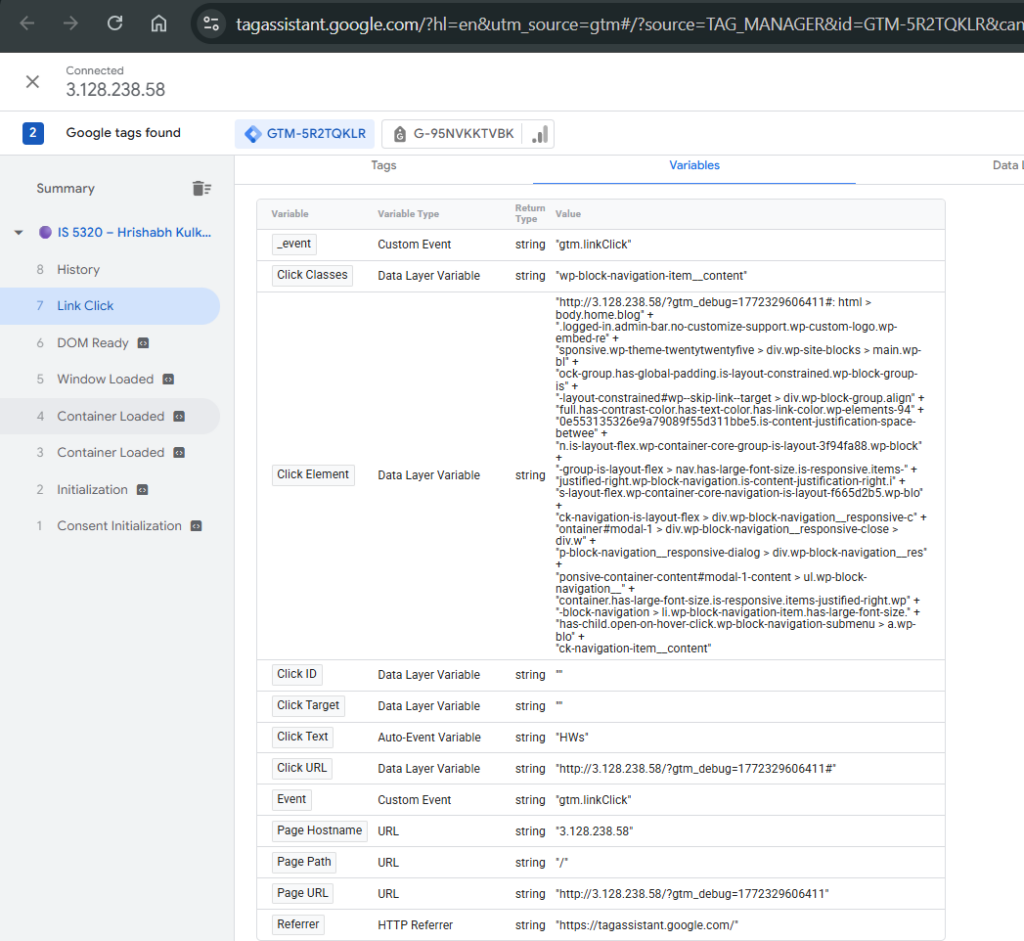
To track user engagement with my site’s navigation, I created a “menu click” custom event in Google Tag Manager for one of the links in my main menu. I started by entering GTM Preview mode and clicking the target menu link to identify its Click Text value in the Tag Assistant window. Using this, I configured a new Click Trigger in GTM with the condition set to Click Text → contains → [menu link text], which avoids the complexity of using empty CSS Click Classes. I then created a corresponding GA4 Event Tag in GTM, named menu_click, linked to this trigger and tied to my GA4 Measurement ID. After publishing the GTM container, I verified the tag fired correctly in Preview mode. Following the 12–24 hour propagation window, the menu_click event appeared in GA4 under Reports → Engagement → Events, confirming successful tracking. I also marked it as a conversion in GA4 to monitor navigation-driven engagement going forward. Screenshots of the GTM trigger setup and the GA4 event report are included below.